Find your spot in The Shire.
Ready to pick where you'll be camping in The Shire? Whether you're joining a group of friends or finding your own quiet corner, selecting your camping location happens through SKALD — our ticketing and player platform. Follow the steps below to get set up.
Getting Started on SKALD
Go to SKALD
Open skald.com in your browser.
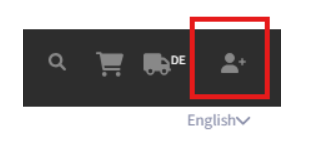
Open the account menu
Click the Person icon in the top right corner.
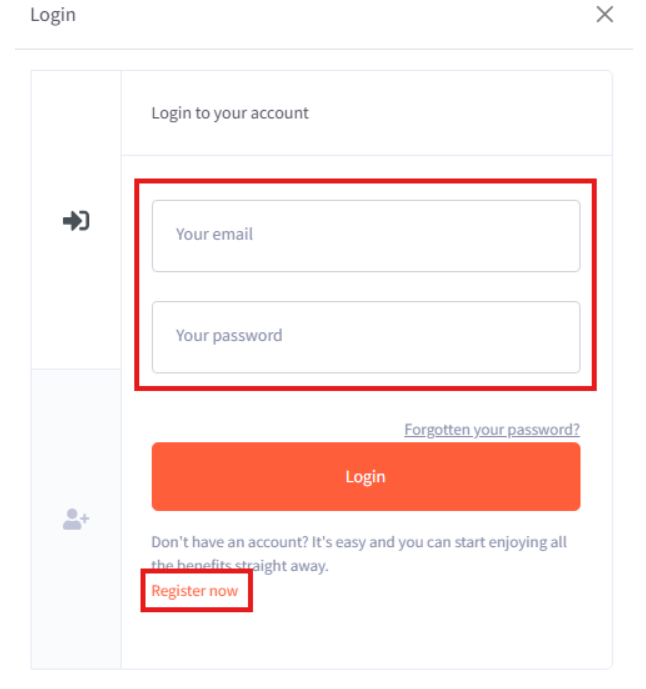
Log in or register
If you have an account, log in. If you don't yet have an account, click the link at the bottom of the pop-up to Register now.
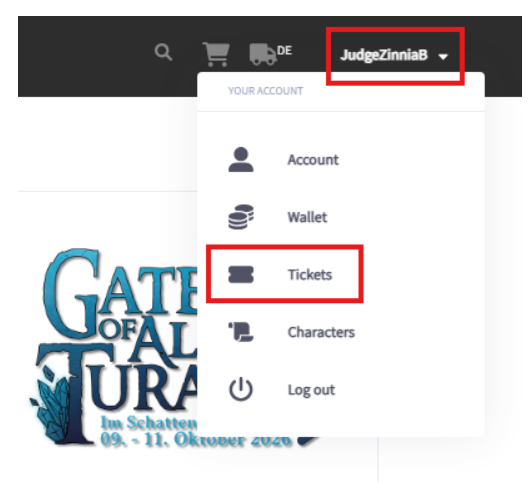
Go to your tickets
Once you are logged in, hover over your username at the top right corner and select Tickets from the drop-down menu that appears.
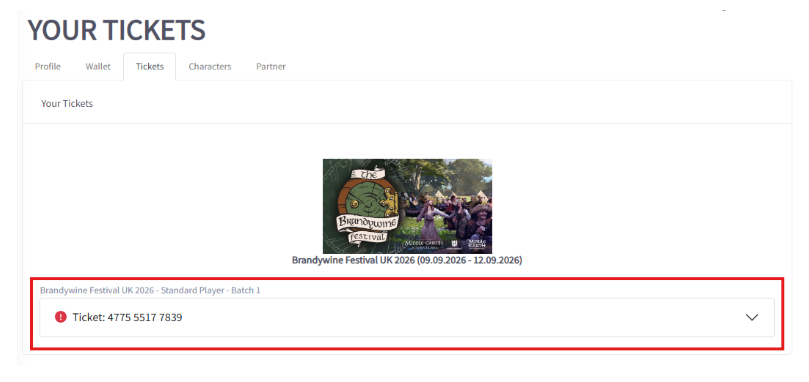
Open your Brandywine ticket
Click the dropdown that lists your Brandywine ticket.
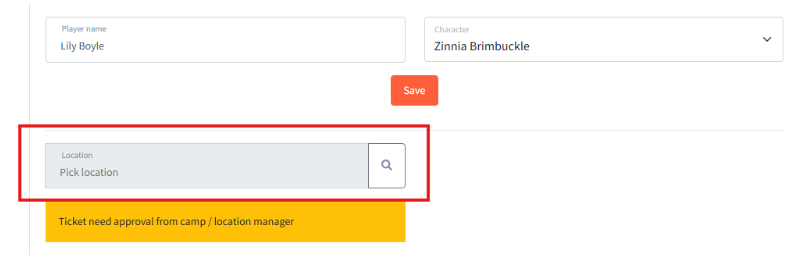
Click the Location field
Click the Location field to select your preferred camping group or zone. You may need to add your Player name and Character name before you have the option to select camping.
Choose your group or quarter
Choose from the list of Camping Groups and Quarters.
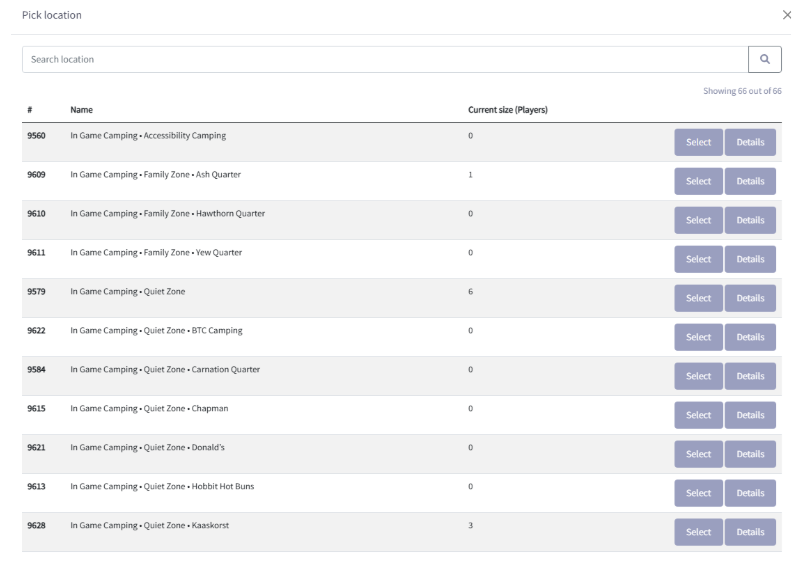
If you arrange a Group ahead of time, each member should select the name of the Group, and the Group Leader will be prompted to approve each member.
Confirm your selection
Once you select your area, you can click on your ticket again to confirm what you have selected. You will either see a banner telling you that your location will need approval, or you will see no banner, and should see Location Info populated with information about the zone you chose.
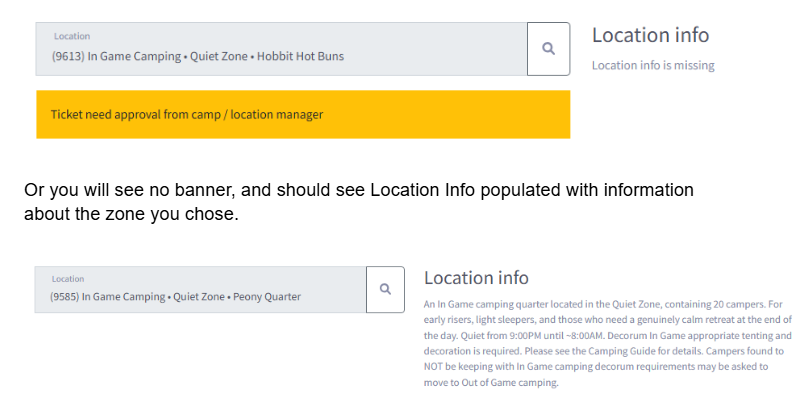
Points to Note
- Everyone must select a group or quarter. If you don't, we will put you where there is space — likely in out-of-game camping — and we can't guarantee whether you will be in the Social or the Quiet zone.
- Sharing a tent? Make very sure you both select the same group or quarter.
- Accessible camping is its own zone and is not broken down into Social / Quiet / Family. If you need to be in the Accessible area, look for 'In Game Camping - Accessibility Camping'. Having an accessibility ticket does not mean you need to be in accessibility camping — feel free to choose the area that works best for you.
- Bought multiple tickets? You can either transfer the tickets to the SKALD accounts of whoever is using them, or select the group or quarter for each ticket from your own account.